AI-assisted detection
ClearFrame suggests likely logos, text, timestamps, and visual overlays.
Suggestions are a starting point — you approve, edit, or replace every selection before anything is processed.
AI Watermark Remover Free Online
Use AI to detect and remove old logos, date stamps, hardcoded subtitles, and watermarks from MP4, MOV, or WebM videos and photos. Test with a free instant preview, batch multiple clips, and export without quality loss.


Authorized examples
Select an example, then compare the exact same generated frame before and after its fictional overlay.
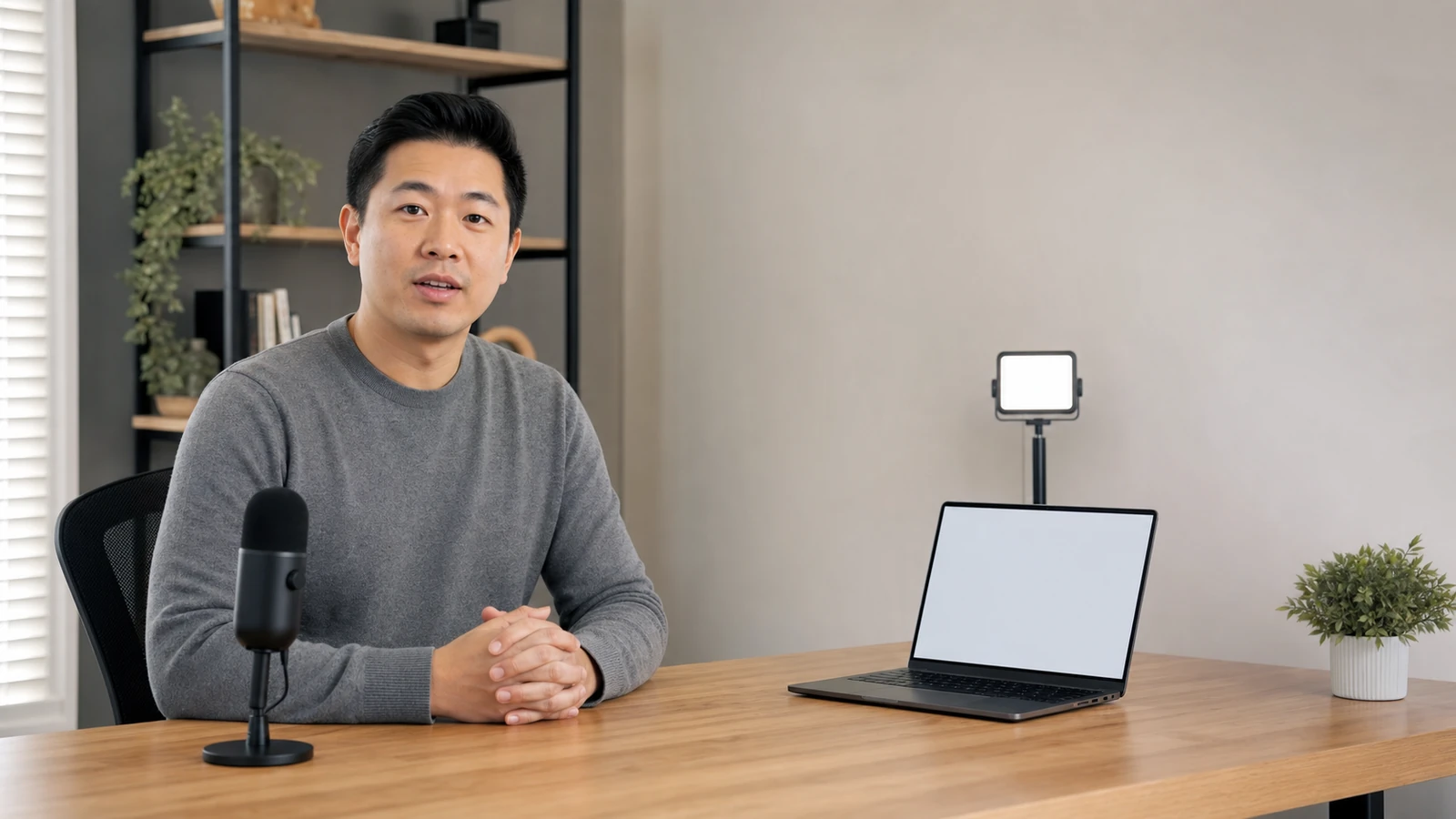
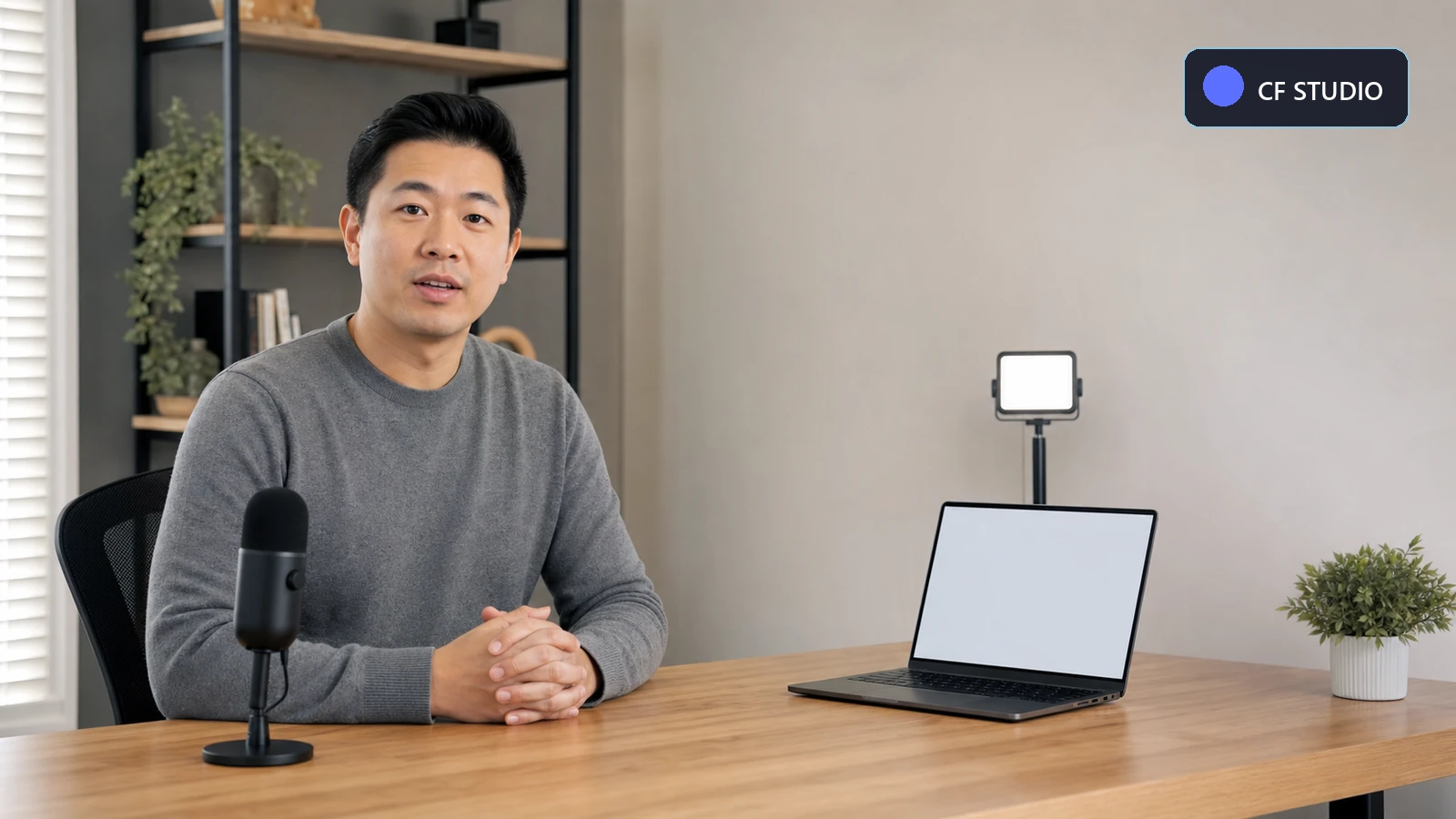 Original
Corner logo
BalancedStatic rectangleRemove a small logo from footage you created or are authorized to edit.
Drag the handle to compare
Generated, owned demonstration scenes with fictional overlays. Results vary with source detail, movement, mask placement, and preset.
How it works
Upload, detect, refine, preview, and export while you stay in control at every stage.
Add an MP4, MOV, or supported video from your device.
Let ClearFrame identify persistent logos, text, and overlays.
Approve the suggestion or edit the selected area manually.
Review how the selected region follows the footage.
Compare a short processed result before using full credits.
Render and download the cleaned video with audio preserved.
Why ClearFrame
ClearFrame suggests likely logos, text, timestamps, and visual overlays.
Resize, redraw, brush, erase, feather, and review the mask yourself.
Test a short section before committing credits to the full render.
Maintain aspect ratio, frame rate, audio, and video synchronization where possible.
Who it's for
ClearFrame is a video overlay remover for footage you own, license, or are authorized to edit.
Remove your previous channel logo or an old timestamp from footage you own.
Clean approved source footage without losing frame-level judgment.
Update approved campaign footage when branding changes.
Clean internal recordings containing outdated overlays.
Remove your own subtitles, course labels, or timestamps.
Reduce persistent overlays on archival footage you are authorized to edit.
Quality & control
ClearFrame uses mask-based reconstruction and temporal processing to rebuild the selected area while preserving the surrounding footage.
Basic remover
ClearFrame
Results depend on scene complexity, movement, mask accuracy, and source quality.
Features
Pricing
Start free, then move to a plan that fits your video workload.
Refreshing live plan details…
What is a credit?
A credit is the unit ClearFrame uses for processing. 100 credits equals one full-video render.
Do previews cost credits?
No. Generating a short preview is free. Credits are only used for a full render.
What if processing fails?
Credits for a failed render are returned to your balance automatically.
When do credits reset?
Daily credits reset every 24 hours and do not roll over.
After cancellation?
You keep access until the end of the current billing period, then move to Free.
Trust & privacy
ClearFrame is designed for footage you own, license, or are authorized to edit — with clear guardrails, private storage, and files that don't linger.
File retention at a glance
Your videos are never used to train models without your explicit opt-in, and you can delete a project's files at any time.
You confirm you own or are licensed to edit the footage before processing.
Uploads are kept private to your account, never shown publicly.
Media plays and downloads through short-lived signed links only.
Source, preview, and output files are removed on a configured schedule.
FAQ
Get started
Upload a short video, review the detected area, and generate a preview before committing to the full render.
No credit card required for the Free plan.